
LinkedIn Sharing
Learner Motivation
Skill check

Default Styles help you keep courses consistent without restyling every element by hand.
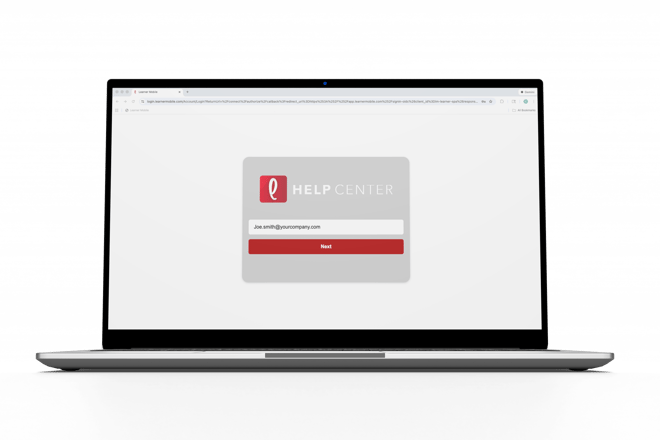
- Log ontoLearner Mobile.
- Navigate to the Admin side of the platform by clicking the circle in the top-right corner.

- Go to the Content tab.
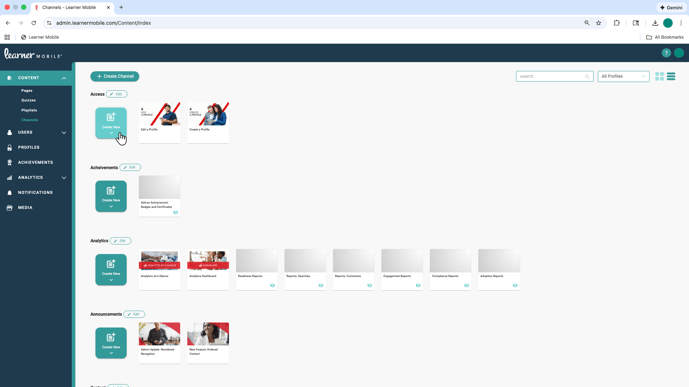
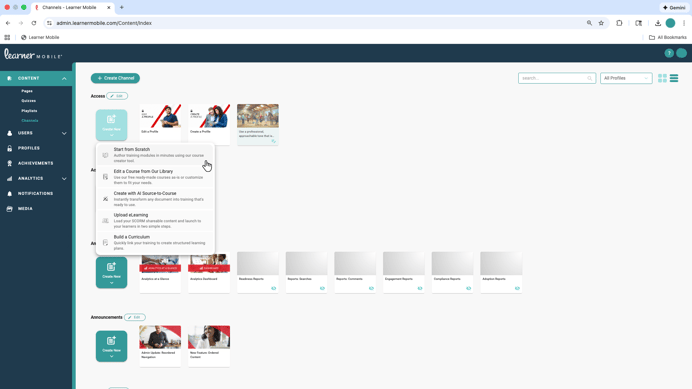
- Select Start from Scratch
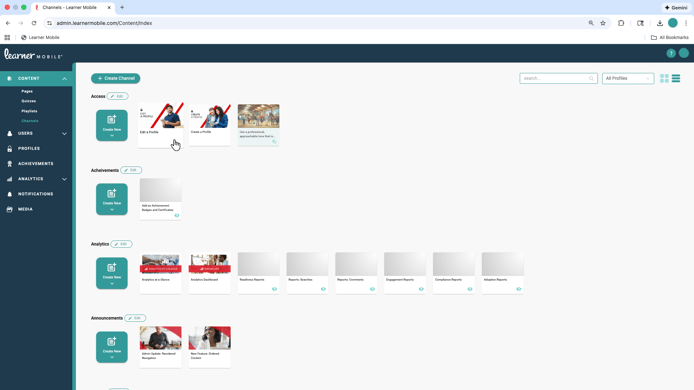
- Or edit any existing content by selecting the course.
- Once you’re inside the builder, select the Styles tab located at the bottomleft of the menu. This is where you set the visual rules that apply across the entire course.
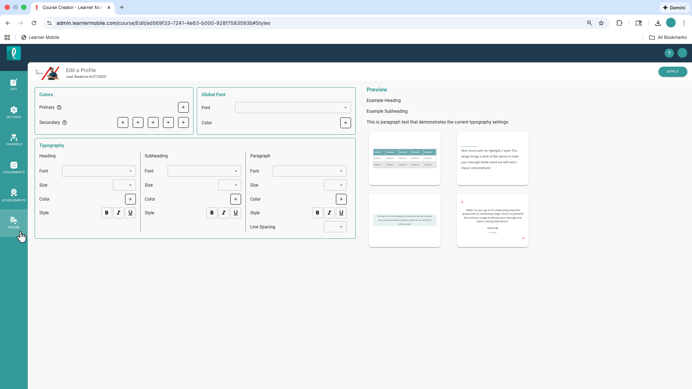
You can define fonts, colors, spacing, and typography once, and every new element you add will automatically follow those settings. Headings, subheadings, and paragraphs stay aligned, and yourcourse keeps a clean, intentional look from start to finish.
Default Styles also make updates easier. Adjust colors or fonts in one place, and those changes carry through the course, so you are not chasing formatting issues screen by screen.
The result is training that stays on-brand, looks polished, and is easier to maintain as content evolves.