LinkedIn Sharing
Learner Motivation
Skill check

Hotspot quiz questions bring training to life by letting learners interact directly with real scenarios. Instead of selecting a standard answer, they engage with content in a way that feels closer to what they will experience on the job.
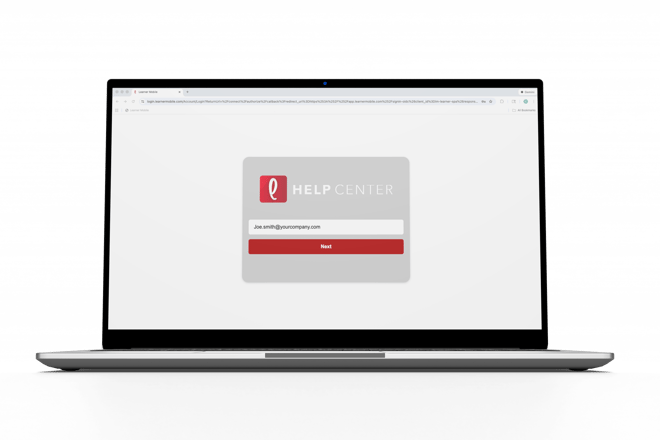
- Log onto Learner Mobile.
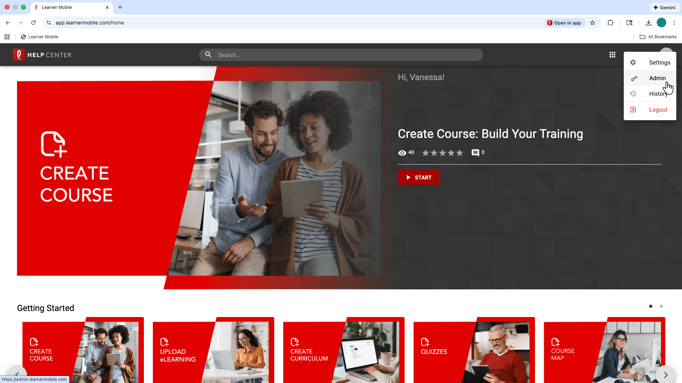
- Navigate to the Admin side of the platform by clicking the circle in the top-right corner.
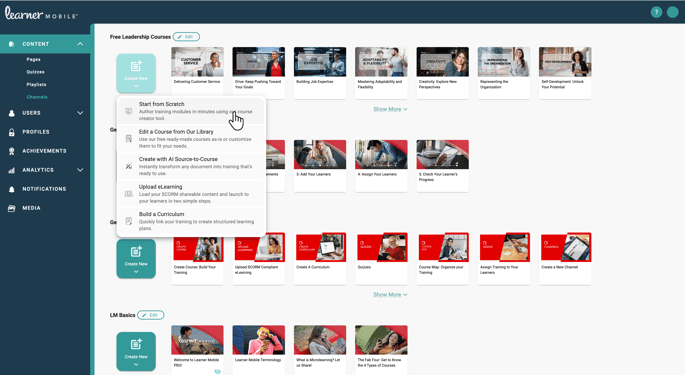
- Select Create New or edit existing content by selecting List View in the top left corner, clicking the three dots, and selecting Edit.
- Navigate to the top left corner and select “My Lesson.”
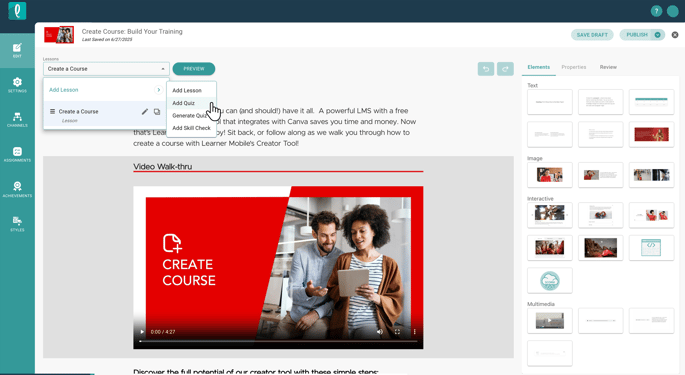
- Click “Add Quiz.”
- Select “Go.”
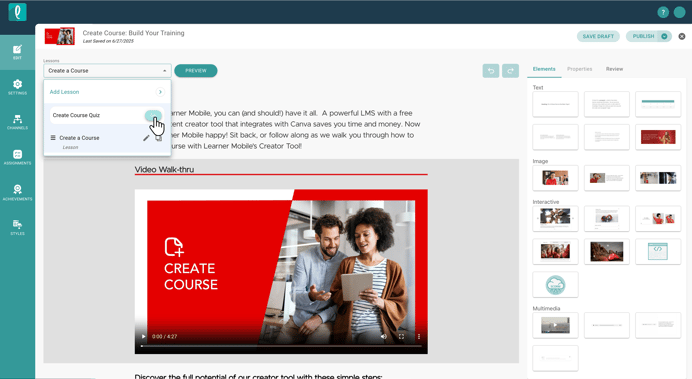
-
On the right-hand side, locate the element bank.
Find the section labeled Hotspot Quiz
You will see two options:
Visible Hotspot
Invisible Hotspot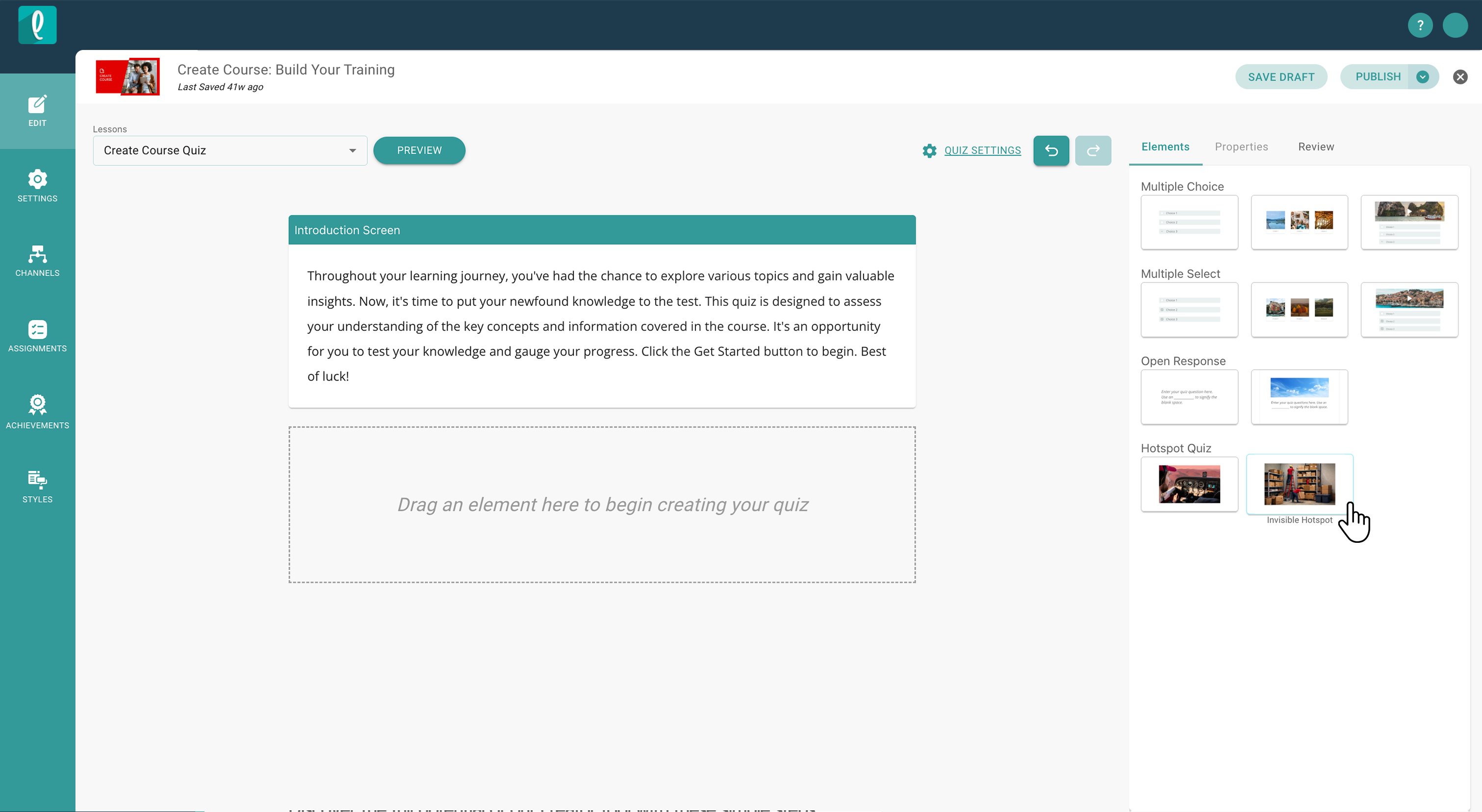
- Select your hotspot type to open the builder.
- Place hotspots directly onto your image
- Adjust shape, size, and color
- Define each hotspot as:
- Correct
- Incorrect
- Or include multiple correct options
- Scroll down to configure learner feedback.
-
- Add correct feedback
- Add incorrect feedback
- Set quiz parameters.
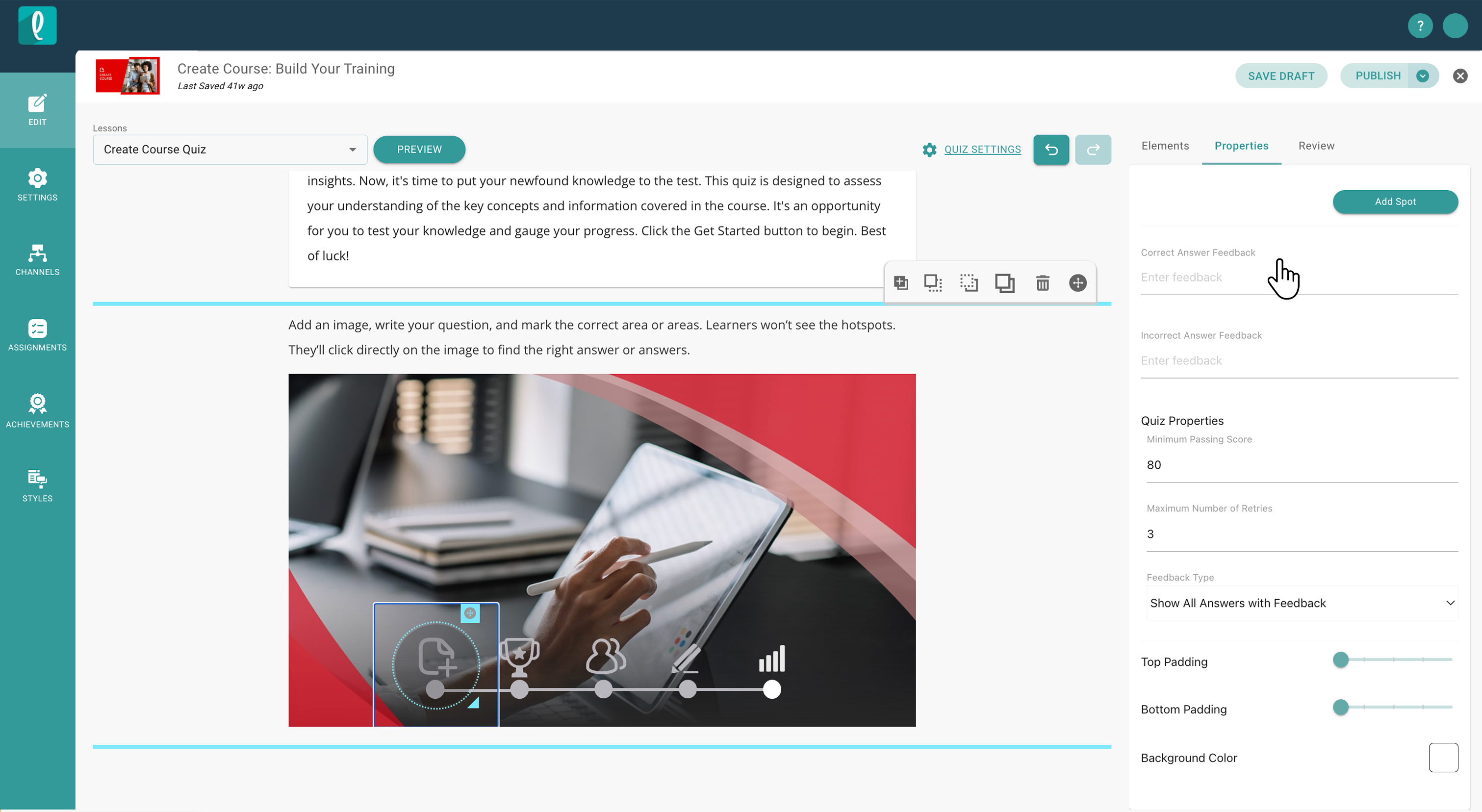
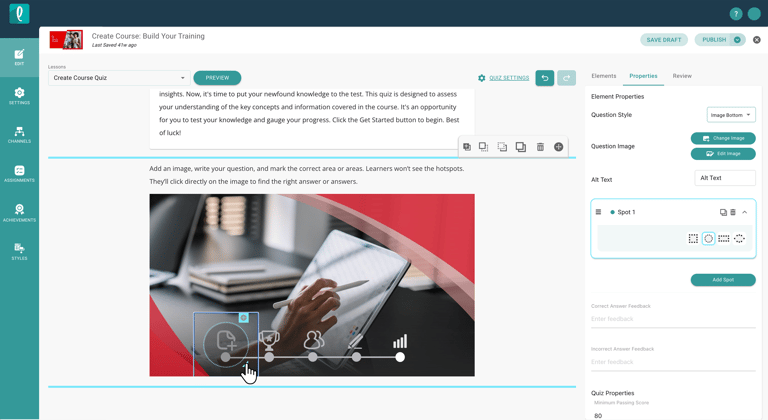
- Define a passing score
- Choose the number of allowed attempts
- Adjust background color
- Modify padding and spacing
Framing your question around real work situations helps learners apply what they’ve learned in a way that supports readiness and performance.